Product guide
From content setup to inquiry follow-up This guide is for merchants, sales and operations teams using InquiryFlowAI. No technical knowledge is required—prepare product content, configure customer handling and follow up through the business workflow.
Recommended order Prepare content before handling visitors Follow this order to reach stable, reviewable AI answers faster.
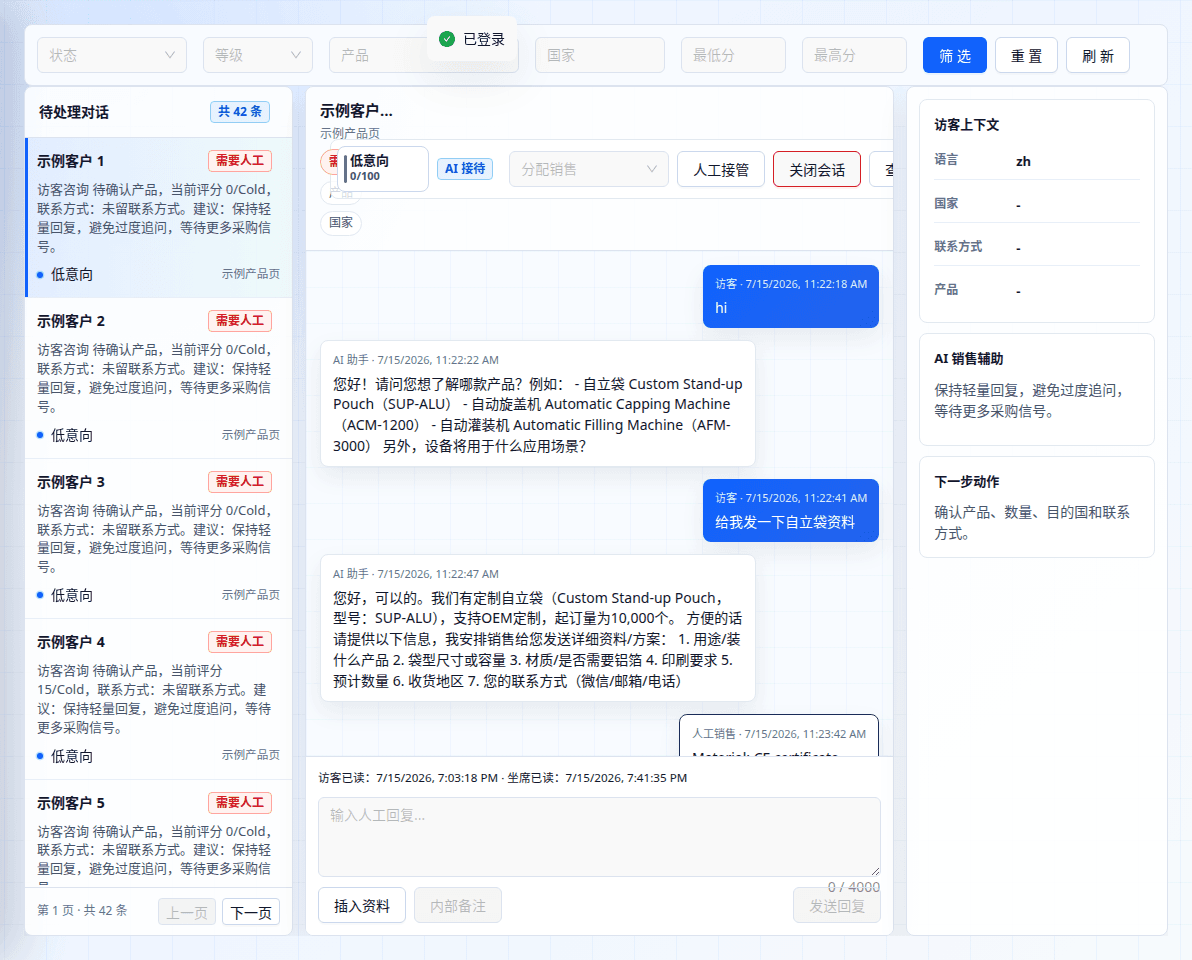
Add products: start with 3–5 priority products, including models, specifications, applications and certifications. Prepare knowledge: add FAQs, product documents or web content and connect each source to a product. Upload assets: add catalogs, specifications and certificates with suitable delivery rules. Tune intent rules: define which visitor behaviors deserve faster follow-up. Invite members: give sales and operations the access needed for their roles. Configure AI replies: set tone and handoff behavior, then test real customer questions. Launch and follow up: handle live conversations and keep leads moving. 01 Conversations The live workspace for visitors, AI and sales. Review the full conversation, see who owns it and decide the next action.
When to use it Review active visitors Take over when AI needs help Send a relevant product asset Tips Read the existing transcript before asking again. Close only when no follow-up remains. Steps Select a conversation. Read the transcript and visitor context. Take over and assign sales when needed. Insert a catalog or certificate. Record follow-up or close a finished conversation. Conversations interface example. Screenshots use demo content; your workspace shows its own data. 02 Leads Leads organize buying needs, contact details, intent level, AI evidence and the next recommended action.
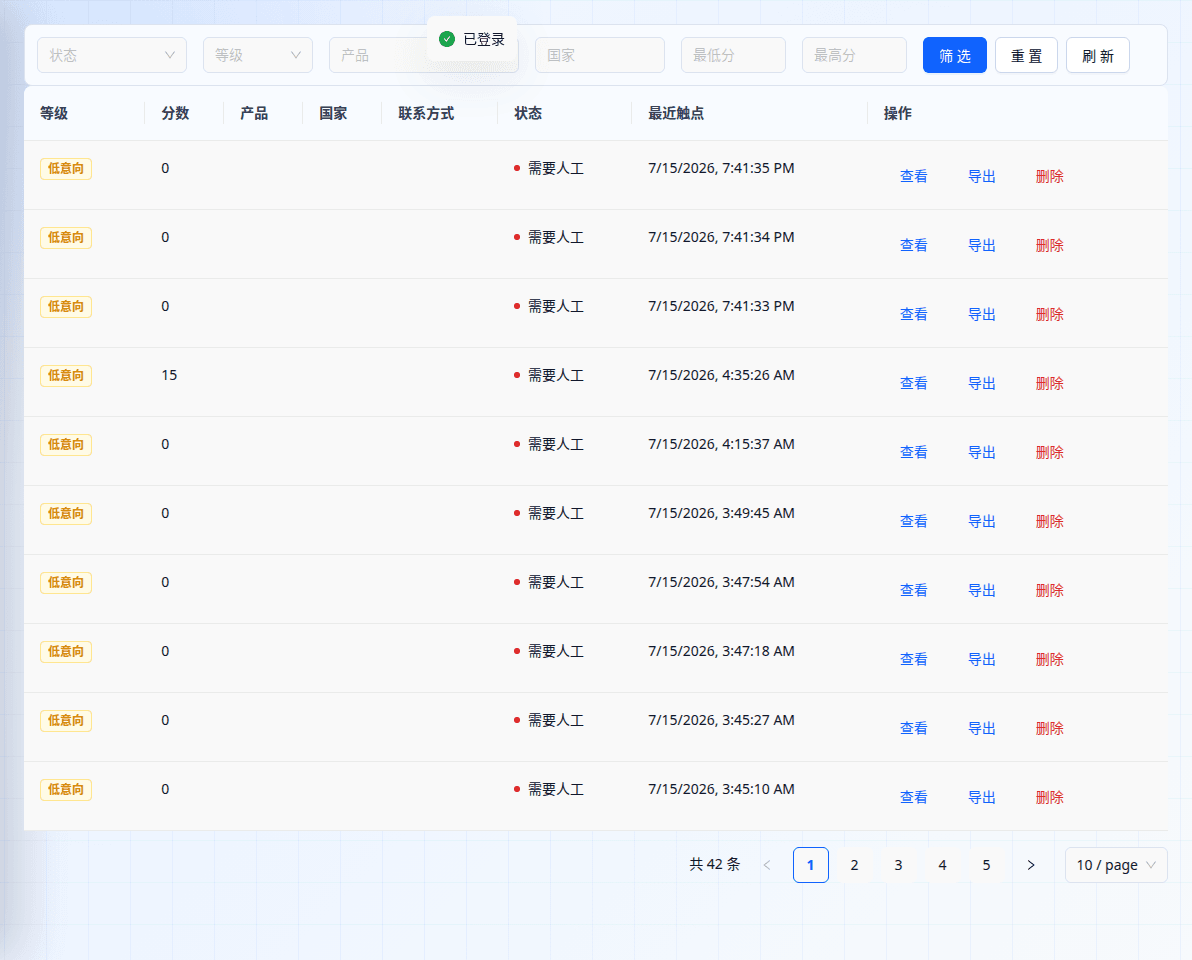
When to use it Prioritize high-intent buyers Review buying conditions and history Assign and record sales follow-up Tips Prioritize high-intent leads with contact details. Record dates, commitments and ownership. Steps Filter by intent, product, country or status. Open a lead and verify contact and requirements. Review product suggestions and answer sources. Add notes and the next action. Export when offline handling is needed. Leads interface example. Screenshots use demo content; your workspace shows its own data. 03 Knowledge Knowledge gives AI reliable business context such as FAQs, specifications, lead times, certifications and company information.
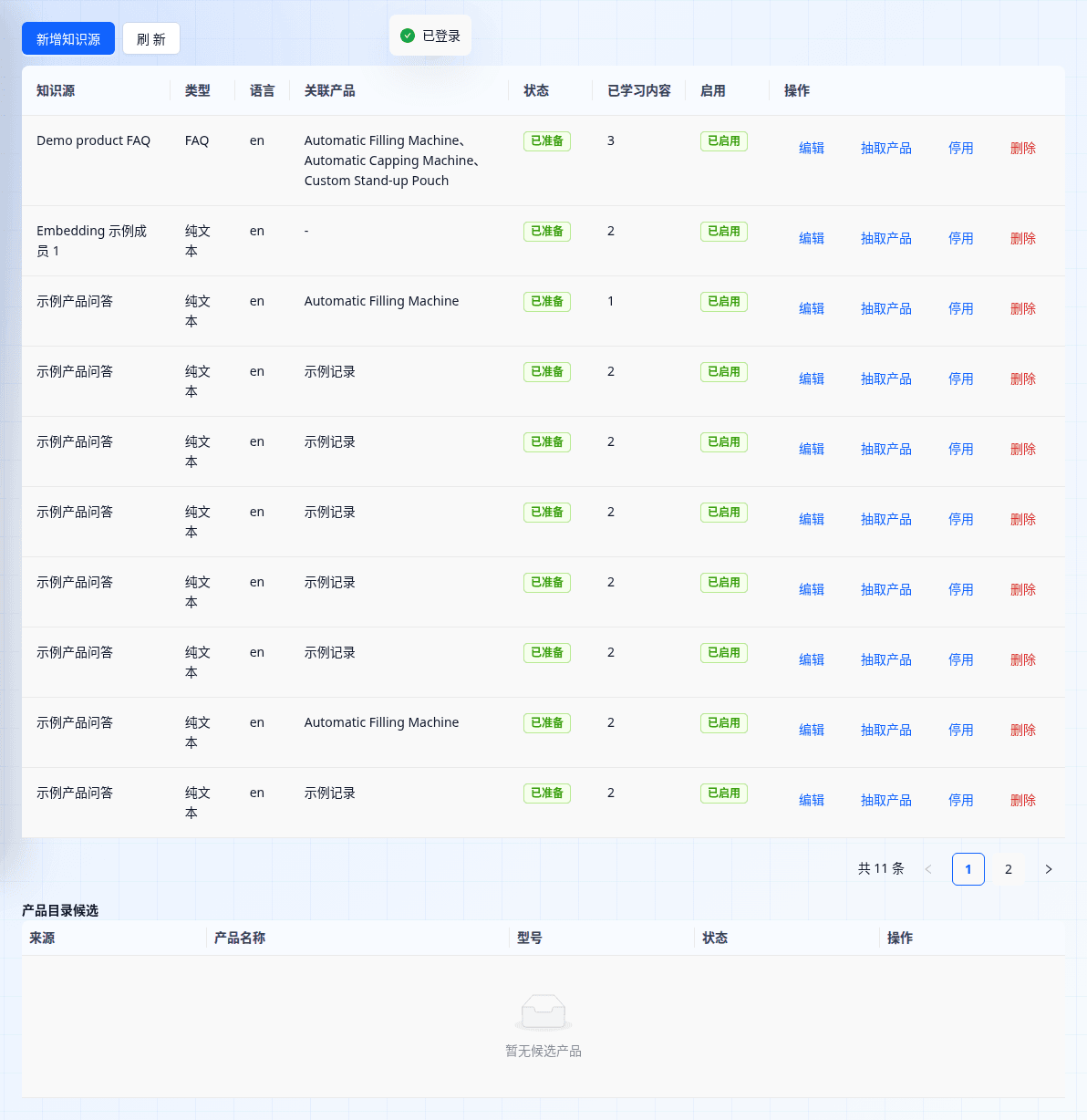
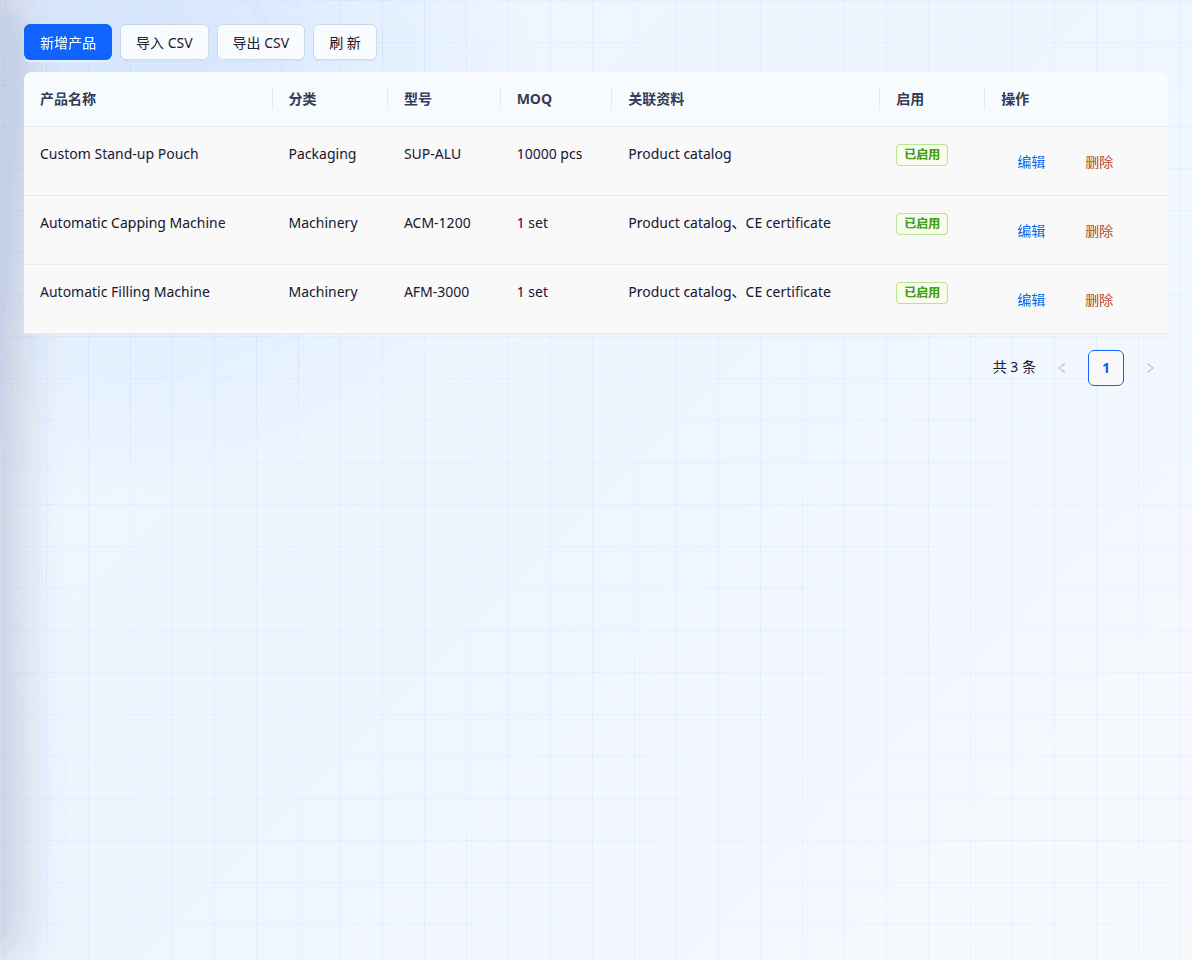
When to use it Answer common product questions Explain specifications and certifications Add web, document or spreadsheet content Tips Keep each source focused on one topic. Update content when product policy changes. Steps Select Add knowledge source. Name it and choose type and language. Connect it to the relevant product. Add text, a URL or a supported file. Wait for processing and verify answers in AI reply settings. Knowledge interface example. Screenshots use demo content; your workspace shows its own data. When to use it Maintain priority products Recommend with verified specifications Connect catalogs and certificates Tips Start with the 3–5 most requested products. Use units buyers understand. Steps Select Add product. Add specifications, applications, MOQ and certifications. Connect relevant assets. Save and confirm the product is enabled. Use CSV import for larger catalogs. Products interface example. Screenshots use demo content; your workspace shows its own data. 05 Assets Assets are files you can send to visitors, such as catalogs, specifications, certificates and sample policies.
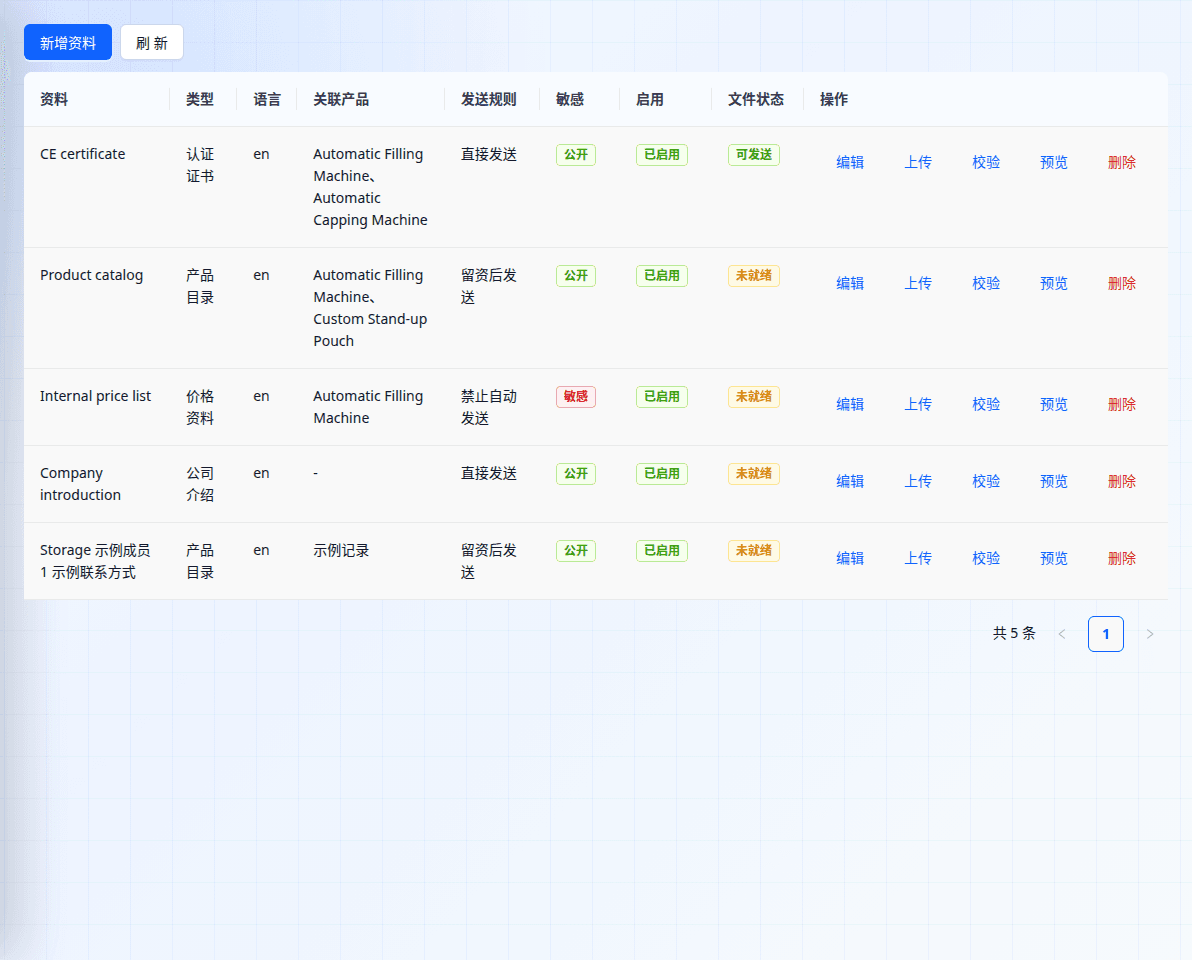
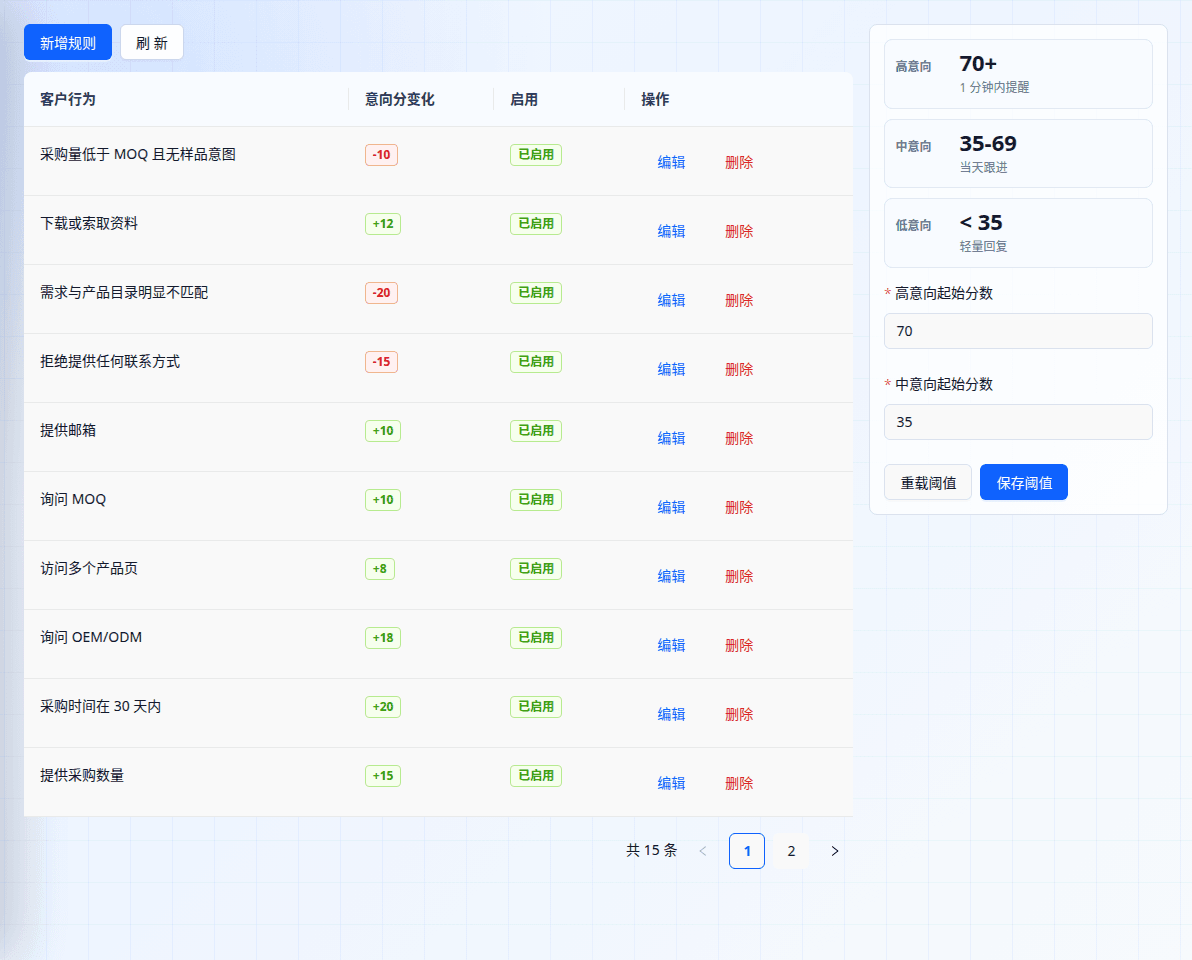
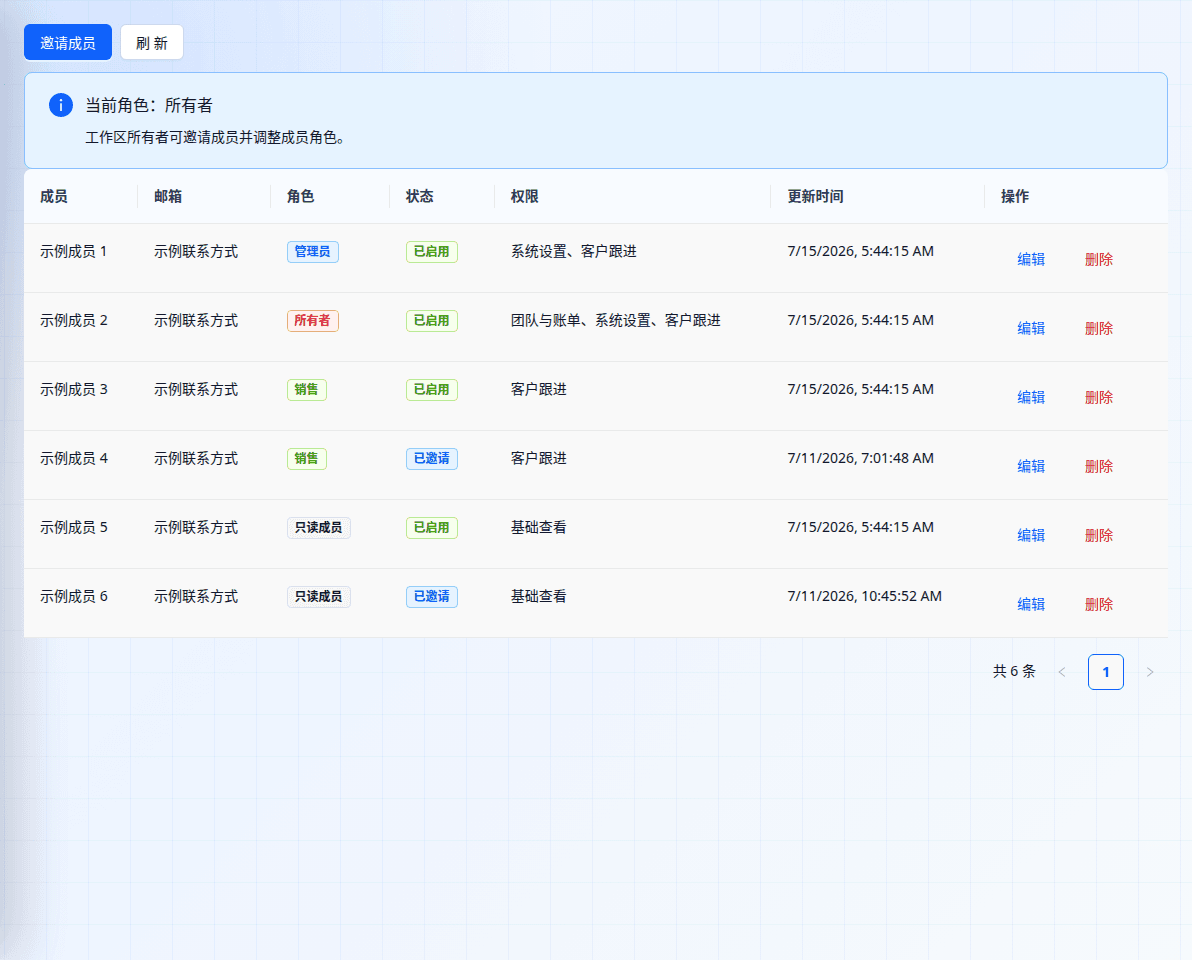
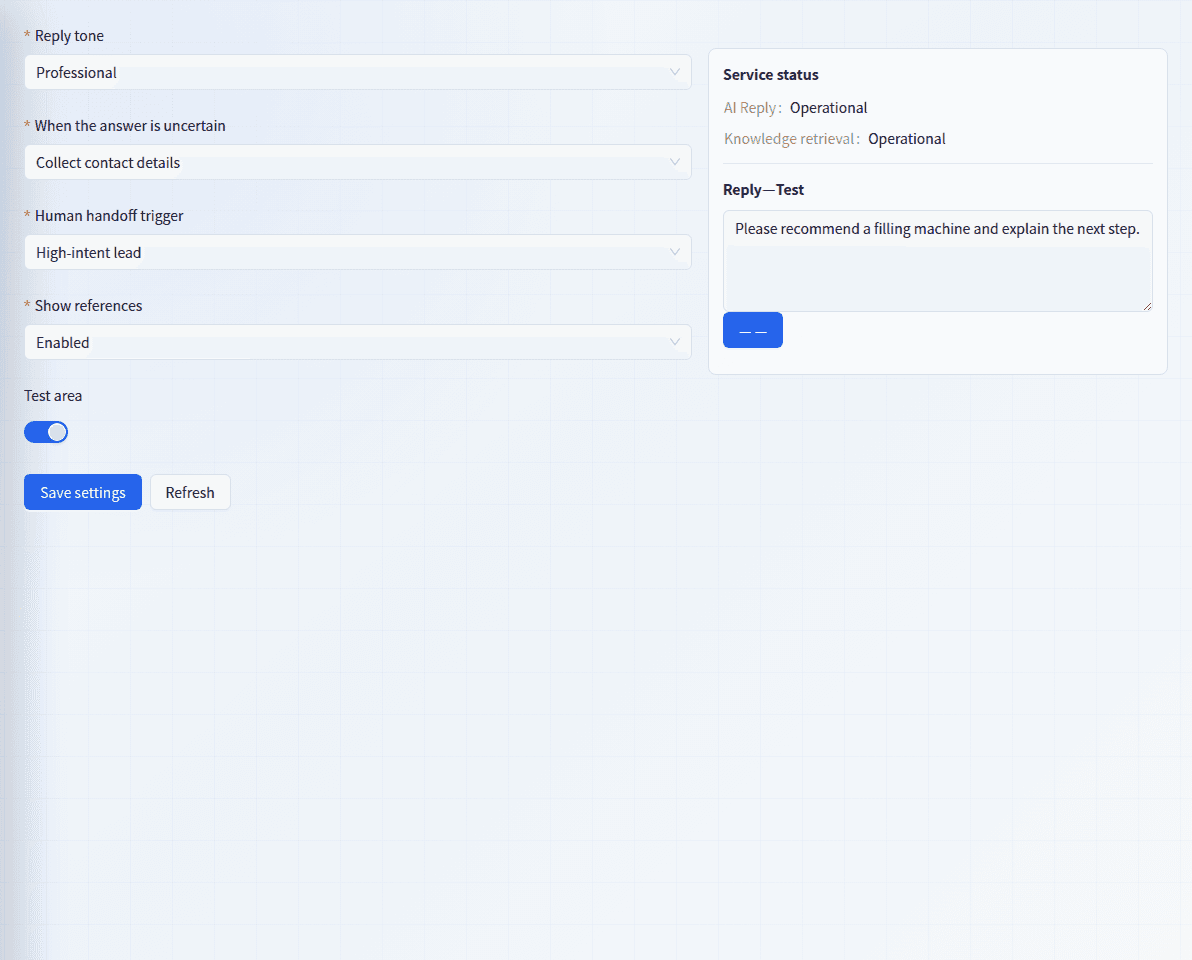
When to use it Send a catalog or specification Share public files after contact capture Require sales approval for sensitive files Tips Require approval for price lists. Validate again after replacing a file. Steps Select Add asset. Choose product and delivery rule. Upload the file. Validate it until ready. Send it from a conversation or lead. Assets interface example. Screenshots use demo content; your workspace shows its own data. When to use it Separate high, medium and low intent Prioritize the strongest inquiries Adapt scoring to your sales process Tips Change a small number of rules at once. Scores prioritize; they do not promise a sale. Steps Review the score thresholds. Review behaviors and score changes. Add a rule for a business-specific signal. Edit or disable one rule at a time. Review lead quality before adjusting further. Intent rules interface example. Screenshots use demo content; your workspace shows its own data. When to use it Invite sales Let operations maintain content Provide read-only access Tips Grant only necessary permissions. Keep at least one active owner. Steps Select Invite member. Enter a work email and role. Confirm invitation status. Edit the role when responsibilities change. Disable or remove access promptly when no longer needed. Members interface example. Screenshots use demo content; your workspace shows its own data. When to use it Keep brand tone consistent Hand off high-intent or complex questions Test product answers before launch Tips Test models, specifications, MOQ, certification and unknown questions. Do not turn unconfirmed price, stock or lead time into promises. Steps Choose the reply tone. Set behavior for uncertain answers. Choose handoff triggers and reference display. Save, then ask real customer questions in the test area. Correct products or knowledge before retesting inaccurate answers. AI reply settings interface example. Screenshots use demo content; your workspace shows its own data. Ready to start? Add a few priority products and frequent questions, verify answers in the test area, then install the chat widget on your site.